> ## Documentation Index
> Fetch the complete documentation index at: https://docs.titanbase.app/llms.txt
> Use this file to discover all available pages before exploring further.
# Verify a Phone Number
> This guide will tell you how to add and verify a number so you can receive SMS notifications.
You must verify your phone number for each organization you are a part to receive messages from them. If you are a member of Org A and Org B and only verify your number with Org A, you will only be eligible to receive notifications for Org A until you also verify your number with Org B.
## Add a Phone Number to Your Account
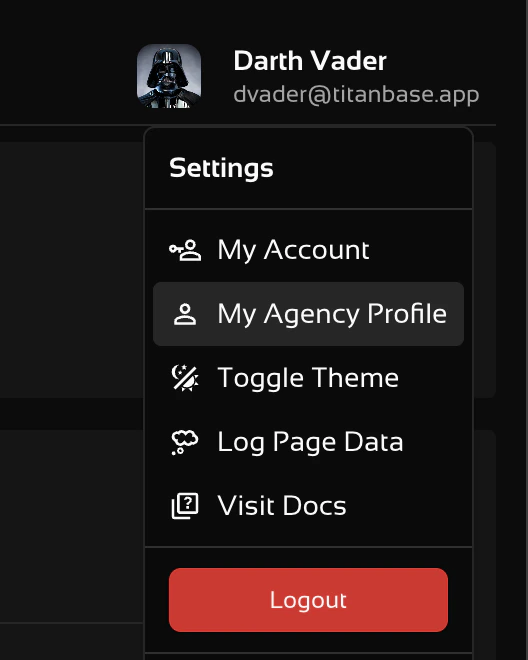 Click on the "Notifications Tab" to reach this screen.
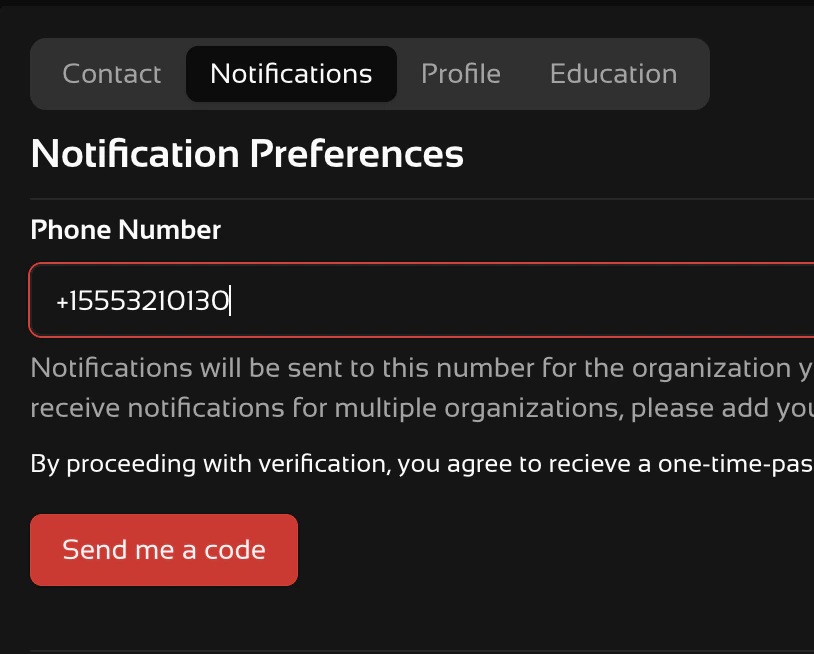 Only US (+1) numbers are accepted. You will not be able to verify unless you use +1XXXXXXXXXX format.
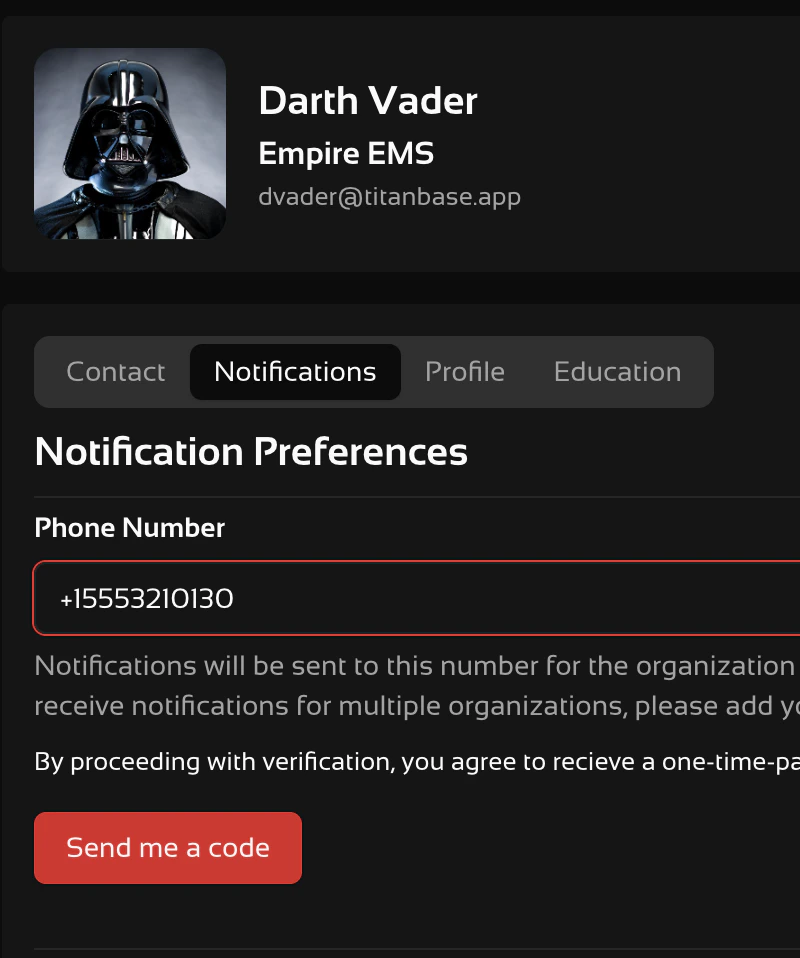 This button only appears if you are using the correct format for your phone number.
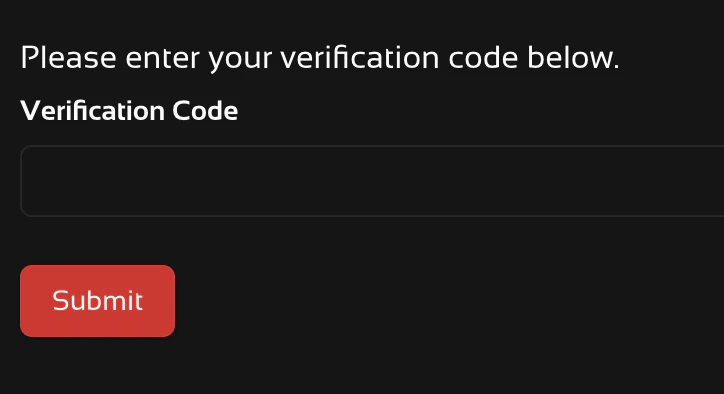 If verification is successful you will receive a text message with the following message.
> \[Titanbase] You have successfully verified your phone number. Reply STOP to opt out of these messages at any time.
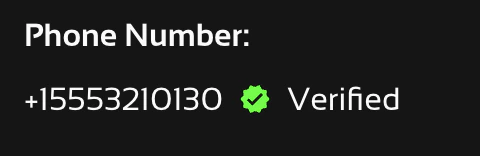
You should also see a verified mark beside your phone number.
If verification is successful you will receive a text message with the following message.
> \[Titanbase] You have successfully verified your phone number. Reply STOP to opt out of these messages at any time.
You should also see a verified mark beside your phone number.
 ## Update or Verify an Existing Number
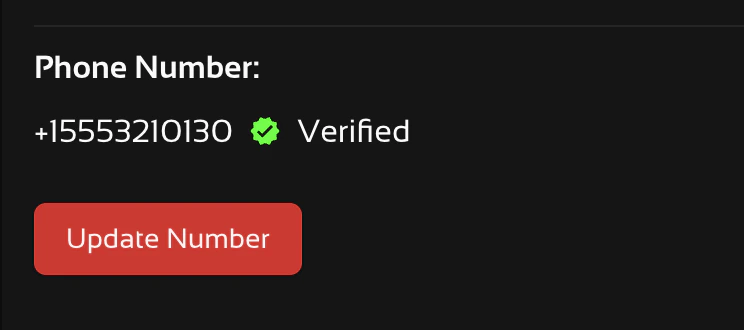
If you already have a number on your user profile click on "Update Number" to verify it.
## Update or Verify an Existing Number
If you already have a number on your user profile click on "Update Number" to verify it.
 Enter your phone number in the +1XXXXXXXXXX format and follow the verification prompts.